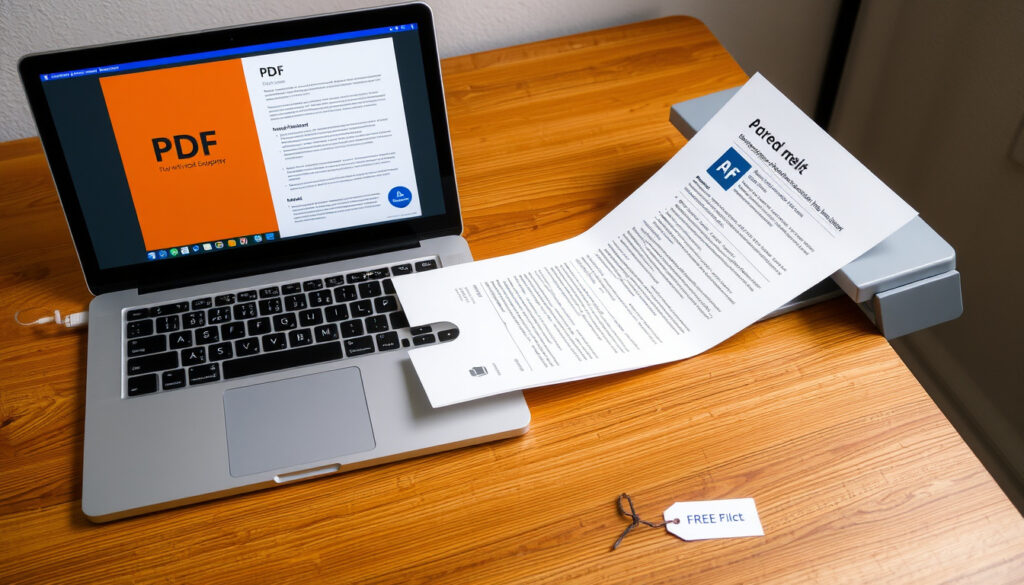
How to Convert PDF to Word for Free: 5 Methods
Anyone who’s ever needed to turn a PDF into an editable Word document already knows the struggle: you paste text and the formatting explodes. Fortunately, several free tools now handle the conversion surprisingly well—provided you pick the right one.
File size limit for free Adobe conversion: 100 MB ·
Free Smallpdf files per day: 2 ·
ilovepdf claimed accuracy: nearly 100% ·
Number of major free online converters: 4 (Adobe, Smallpdf, ilovepdf, Nitro)
Quick snapshot
- Adobe Acrobat online is free for PDFs up to 100 MB (Adobe Acrobat official page)
- Microsoft Word can open PDFs in versions 2013 and later (Microsoft support documentation)
- Whether free tools retain exact formatting across complex layouts
- Long-term reliability and uptime of free conversion services
- TechRadar’s 2026 guide signals ongoing demand for free converters (TechRadar 2026 guide)
- Free converters likely to improve OCR accuracy for scanned documents (ComPDFKit comparison analysis)
Here are the key limits that define the free tier of each converter.
| Parameter | Value |
|---|---|
| File size limit (Adobe) | 100 MB |
| Files per day (Smallpdf) | 2 |
| Accuracy claim (ilovepdf) | nearly 100% |
| Sign-up required (Nitro) | No |
How to convert a PDF into a Word document?
Using Adobe Acrobat online
Adobe offers a free online PDF-to-Word converter that turns PDFs into editable Word files without requiring a sign-up for the first conversion (Adobe Acrobat official product page). The file size limit is 100 MB per document. Users may be asked to sign in to download the converted file on subsequent uses.
The implication: Adobe’s tool is the most trusted option for quick, one-off conversions, but repeated use nudges you toward a paid account.
Using Smallpdf
Smallpdf provides free conversion with a limit of 2 files per day and no watermarks (Smallpdf PDF to Word converter). No sign-up is required, making it a low-friction choice. According to a comparison by Parsio (conversion tool roundup), Smallpdf is consistently ranked among the top free options.
The trade-off: heavy users will hit the daily cap quickly.
Using ilovepdf
ilovepdf claims near-100% conversion accuracy and supports files up to 100 MB (ilovepdf official page). Its free tier includes OCR for scanned PDFs. However, according to DeepPDF’s 2025 review (accuracy analysis), ilovepdf actually achieved 92% accuracy in tests, which is still good for images and tables.
The catch: the advertised “nearly 100%” may be optimistic, but the tool remains a solid performer.
Using Microsoft Word (desktop)
Microsoft Word 2013 and later can open PDF files directly and convert them to Word format (Microsoft support documentation). This method works best for text-based PDFs but may lose formatting with complex layouts. No internet connection is required, making it a reliable offline option.
Why this matters: for users who already own Office, this is the easiest zero-cost solution.
How do I convert PDF to Word for free?
Free online converters vs desktop software
Free online converters like Adobe, Smallpdf, ilovepdf, and Nitro let you convert without installing software. Desktop tools like Microsoft Word and PDFgear offline offer more control and no file-size limits. According to TechRadar’s 2026 guide (tech review publisher), online tools are convenient but may expose sensitive documents to third-party servers.
The pattern: online wins for speed, offline wins for security.
Limitations of free converters (file size, number of conversions, watermark)
Free converters commonly restrict file sizes (e.g., 100 MB for Adobe), daily conversion counts (2 for Smallpdf), or add watermarks (some lesser-known tools). Adobe and Smallpdf do not watermark output files. According to Nitro (browser-based conversion tool), its free tool allows up to 5 files per day with no registration.
The implication: choose your tool based on the volume and confidentiality of your documents.
That said, daily cap limits mean power users should look to desktop or paid options.
Does Word have a PDF converter?
Using the Open feature in Word
Yes. Microsoft Word 2013 and later include a built-in PDF converter. Simply go to File → Open, select the PDF, and Word will convert it to an editable .docx file. According to Microsoft support documentation, the feature works best for text-heavy PDFs.
The catch: complex layouts with columns, tables, or images may shift.
Converting PDF to Word with Word 2013 and later
Conversion accuracy is generally good for simple documents but may fall short of dedicated OCR tools for scanned pages. According to DeepPDF’s 2025 review (accuracy analysis), Word’s built-in converter was not included in their accuracy tests, but users report mixed results with scanned PDFs.
The trade-off: free and offline, but not optimized for complex or scanned files.
Why can’t I convert PDF to Word?
Scanned PDFs without OCR
Scanned PDFs are images, not text. Without OCR (Optical Character Recognition), conversion yields uneditable images. Adobe Acrobat Pro has built-in OCR, and some free online tools like PDFgear (free OCR converter) offer OCR in the browser.
The pattern: if your PDF is a scan, you need an OCR-enabled tool.
Password-protected PDFs
Password-protected PDFs require the owner password to convert. Even free tools cannot bypass encryption. According to Adobe Acrobat official page, you must remove the password before uploading.
Why this matters: always check your PDF’s security settings before attempting conversion.
Corrupted PDF files
Corrupted PDFs may cause conversion tools to fail or produce garbled output. Repair tools are separate from converters. According to Parsio (conversion tool roundup), most free converters cannot handle corrupt files.
The implication: verify your PDF is intact before blaming the converter.
File size too large for free tools
Free tools impose file size limits, typically 100 MB (Adobe, ilovepdf, PDFgear). Larger files require splitting or a paid plan. According to Nitro (browser-based conversion tool), its free version also has a cap, but the exact limit is not disclosed without sign-up.
The catch: for large PDFs, you may need to compress or split the file first.
Understanding these blockers saves time and frustration.
How to convert a scanned PDF to Word?
Using Adobe Acrobat with OCR
Adobe Acrobat Pro includes built-in OCR that can turn scanned PDFs into editable Word documents with good accuracy (Adobe Acrobat official page). The free online version of Adobe does include OCR, according to its product information.
The trade-off: the free online version has a 100 MB limit and may require a log-in on repeat use.
Using third-party OCR tools
Third-party tools like PDFgear offer free online OCR conversion supporting around 20 languages (PDFgear (free OCR converter)). According to DeepPDF’s 2025 review, FreeConvert achieved 95% accuracy on complex layouts, while iLovePDF reached 92% (DeepPDF accuracy analysis).
The pattern: dedicated OCR tools can match or exceed desktop software for scanned documents.
Online OCR converters
Online OCR converters like ComPDFKit claim to be “totally free without limitation,” but independent verification is lacking (ComPDFKit comparison analysis). Use them for low-sensitivity documents.
The implication: always check the privacy policy before uploading scanned documents containing personal data.
Upsides
- Multiple free tools available with no watermark
- Built-in OCR in top tools like Adobe and PDFgear
- No registration required for many converters
Downsides
- File size and daily conversion limits
- Scanned PDFs need OCR – not all tools support it
- Formatting may be lost in complex layouts
Weighing these pros and cons helps you pick the right converter for your specific use case.
Step-by-step: Convert PDF to Word in 3 minutes
- Check your PDF type. Is it scanned or text-based? If scanned, choose an OCR tool like Adobe or PDFgear.
- Pick a free converter. For text-based PDFs up to 100 MB, use Adobe Acrobat online (Adobe Acrobat). For multiple files daily, use Nitro (Nitro PDF to Word).
- Upload and convert. Drag your file into the tool and wait for processing (usually under a minute).
- Download and check. Open the .docx file in Word and verify formatting. Adjust any misalignment manually.
- Resolve issues. If conversion fails, check for passwords, corruption, or file size – see the troubleshooting tips above.
Confirmed facts
- Adobe Acrobat online is free for PDFs up to 100 MB
- Microsoft Word can open PDFs in versions 2013 and later
- Nitro does not require registration for its free online converter
What’s unclear
- Whether free tools retain exact formatting for complex layouts
- Long-term reliability of free converters
“ilovepdf claims near-100% conversion accuracy for PDF to Word files.”
“PDFgear’s online OCR converter is highly accurate and supports around 20 languages.”
The takeaway for anyone converting PDFs on a budget: free online tools handle the job well for standard documents, but scanned PDFs and complex layouts still require a careful choice of converter. For the typical user converting a few documents per month, Adobe or Smallpdf will suffice. For heavy or sensitive work, desktop software like Microsoft Word or a paid plan with robust OCR is the better bet.
Free PDF-to-Word converters have improved dramatically, but the gap between marketing and reality matters: tools like ilovepdf advertise “nearly 100%” while independent tests show 92%. Choose based on independent benchmarks, not slogans.
Security risks arise when uploading sensitive documents to unknown services. Stick to well-audited platforms like Adobe, Microsoft, or open-source alternatives to avoid data leaks.
Armed with these insights, you can now convert PDFs to Word with confidence, knowing which tool fits your specific needs.
Related reading: Convert M4A to MP3: Free Online, Mac, Windows, Mobile Guide
For a detailed comparison of tools, check out this guide on using a free PDF to Word converter without signup or watermark.
Frequently asked questions
Are there free PDF to Word converters without watermark?
Yes. Adobe Acrobat online, Smallpdf, ilovepdf, and Nitro all produce watermark-free output on their free tiers (Adobe Acrobat, Smallpdf, ilovepdf, Nitro).
Can I convert PDF to Word on mobile?
Most online converters work in mobile browsers. Adobe and Smallpdf have dedicated apps as well (Adobe Acrobat mobile).
Is PDF to Word conversion safe?
Safety depends on the provider. Major tools like Adobe and Microsoft follow strict privacy standards. Always check the privacy policy before uploading sensitive files (Adobe privacy statement).
What is the best PDF to Word converter for Mac?
Adobe Acrobat online and Smallpdf work in any browser, so they are platform-agnostic. For native Mac software, Microsoft Word for Mac has the same PDF open feature (Microsoft support).
How to convert password-protected PDF to Word?
You must remove the password first using Adobe Acrobat or a dedicated password remover. No free online converter can bypass encryption (Adobe Acrobat instructions).
Does PDF to Word conversion lose formatting?
Some formatting loss is common, especially with complex layouts, tables, or images. Tools like Adobe and ilovepdf preserve basic structure better than others (DeepPDF accuracy analysis).
How many times can I convert PDF to Word for free?
Limits vary: Smallpdf allows 2 files per day, Nitro up to 5, ilovepdf unlimited but with a rate limit. Adobe’s free online tool has no explicit daily cap for single files (Parsio comparison).
Do I need to install software to convert PDF to Word?
No. Online converters like Adobe, Smallpdf, and ilovepdf work entirely in your browser. Only the Microsoft Word method requires a local installation (Adobe Acrobat online).
More related posts
 Does Walmart Price Match? Policy, Self Checkout & More
 Museum of Illusions Toronto: Worth It? Cost, Duration & Age Guide
 Cineplex Odeon International Village Cinemas – Visitor Guide
 Is Full The Same As Double – Complete Bed Size Guide
 Joke of the Day: Funny Daily Laughs and Short Jokes
 CF Monterrey vs Inter Milan Lineups – Official XIs and Tactics
 Salma Hayek: Biography, Age, Net Worth, Movies & Personal Life
 Steven Lorentz: Stats, Contract, Family & Career Journey